
 Netalliance takes special interest in making sure your questions
get answered. Please use this help section to contact us and keep upto date on technical questions.
Netalliance takes special interest in making sure your questions
get answered. Please use this help section to contact us and keep upto date on technical questions.
 |
|||
 |
 |
 |
|
Mac Remote Access Setup
Configuring your Mac with the Internet Setup Assistant
| Step | Instructions | Screen Shot |
|---|---|---|
| 1 | Launch the Internet Setup Assistant | 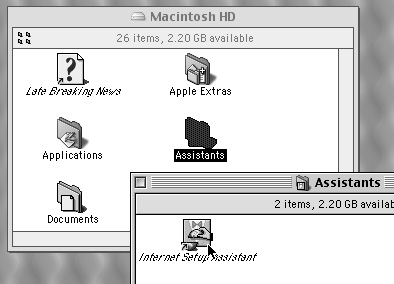 |
| 2 | Click 'yes'. | 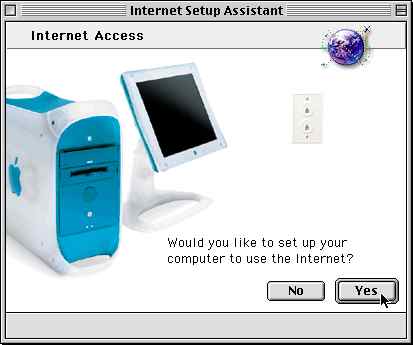 |
| 3 | Click 'yes'. | 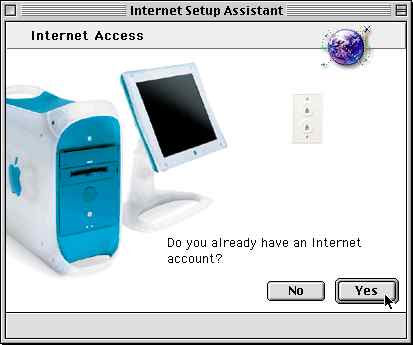 |
| 4 | Enter a descriptive title such as 'Netalliance Dialup'. Select that you have a modem connection. Click the right arrow to continue. | 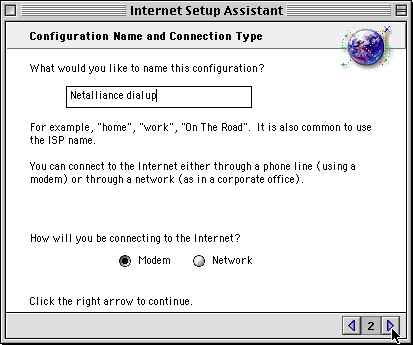 |
| 5 | Select the modem and touch/pulse dialing characteristics appropriate for your computer. Click the right arrow to continue | 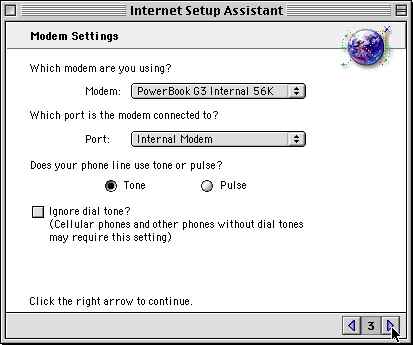 |
| 6 | Enter the dialup access number '952-253-9253'. Enter your Netalliance username and password in the appropriate fields. Click the right arrow to continue. | 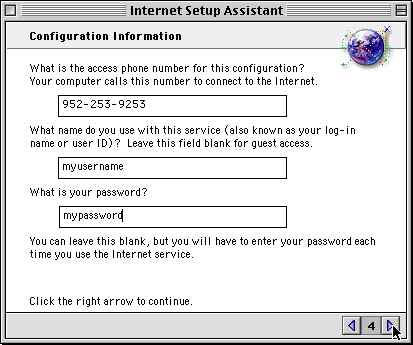 |
| 7 | Select 'yes' and click the right arrow to continue. | 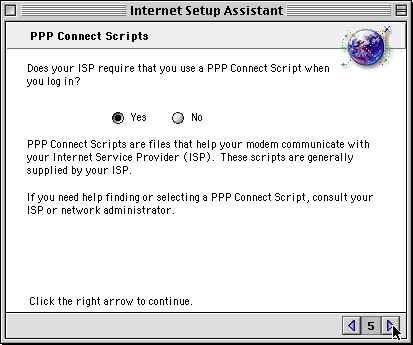 |
| 8 | Select 'Select Other...'; a file dialog will appear. Navigate through your harddisk to find the Netalliance script you were provided. You can obtain the script here. | 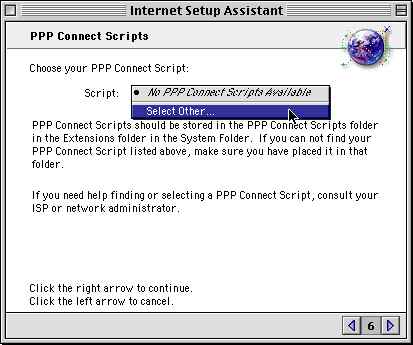 |
| 9 | Click the right arrow to continue. | 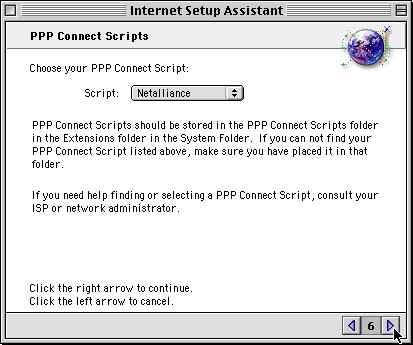 |
| 10 | Enter the DNS server information as shown at right. Click the right arrow to continue. | 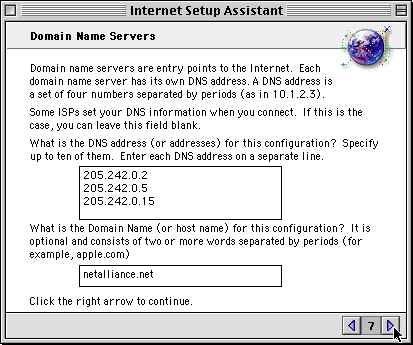 |
| 11 | Enter the e-mail address and password you were given. Click the right arrow to continue. | 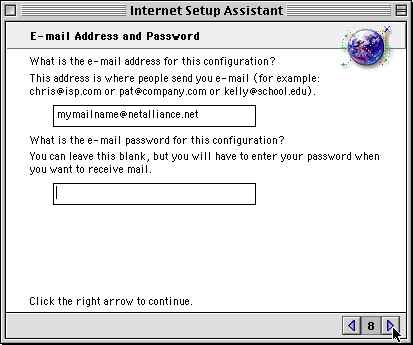 |
| 12 | Enter '[yourusername]@pop.netalliance.net' for the e-mail account field. Enter 'mercury.netalliance.net' for the e-mail host field. Click the right arrow to continue. | 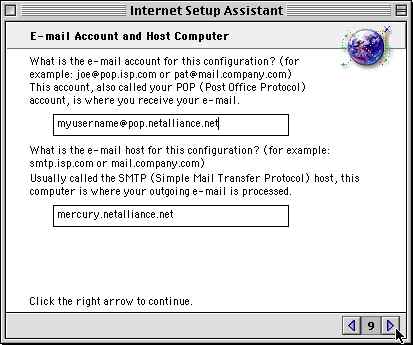 |
| 13 | Enter 'news.netalliance.net'. Click the right arrow to continue. | 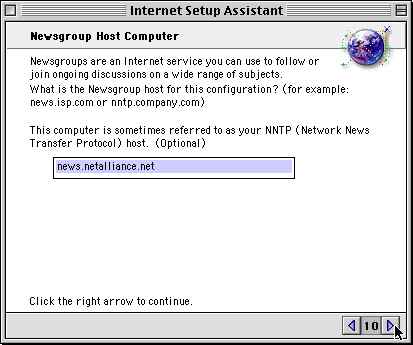 |
| 14 | Select 'no' for proxy servers. Click the right arrow to continue. | 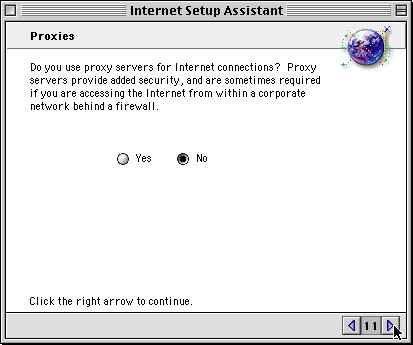 |
| 15 | Click 'go ahead' to install your settings. | 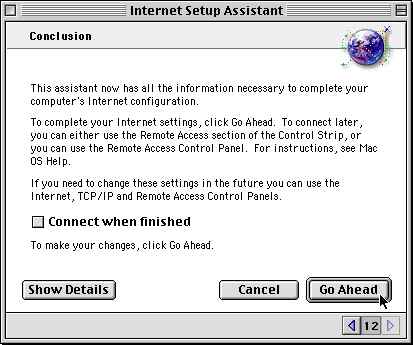 |
| 16 | Working... | 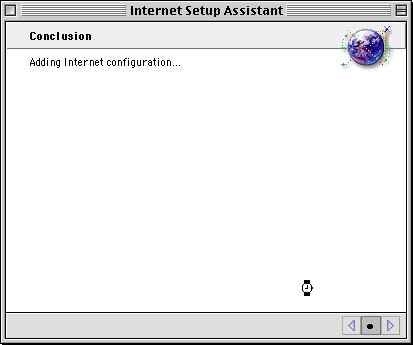 |
| 17 | Finished! | 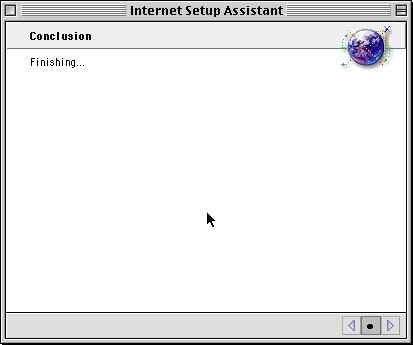 |


Contact Us |
Home |
Search
Phone 651-556-9600; Fax 651-645-7550; info@backpack.net
All rights reserved. All material copyright. Netalliance, Inc. © 1995-2005. Updated: June 12, 2008.